

Use the right tool for each situation
When we work in hybrid or 100% virtual environments, maintaining clear and effective communication is one of the greatest challenges. Informing about enrollments, schedules, fees, or any updates without creating confusion is key so that participants access the information they need.
But, how do we avoid improvisation and optimize the process? In the Campus Virtual, we have multiple tools designed for different types of communication. Just as in everyday life, we don’t use the same tone or the same medium to talk with a friend as we do to send an institutional announcement. That’s why it’s essential to understand how and when to use each one to ensure that our messages are appropriate for each situation.
Below, we show you how to choose the right tool for each need.
- General information for the entire community
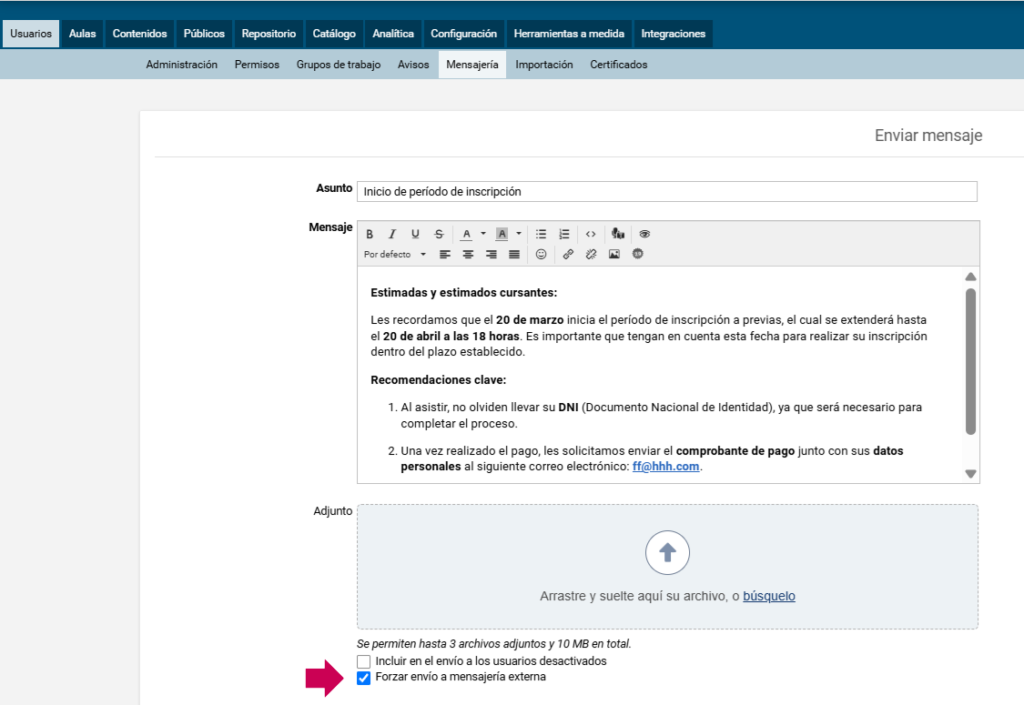
Do you need to communicate the start of enrollments, the beginning of classes, or the suspension of an activity? The best option is Messaging, located in Administration > Users > Messaging.
- Allows you to send a message to the entire community or segment it by Profiles (only participants, only instructors, etc.) or by specific classrooms (for example, all 1st year classes).
- If you check the box “Force sending to external messaging”, the message will also reach each recipient’s personal email inbox. Use it only for relevant information that affects everyone.
To make it easy for users to find this information, you can also publish it on an institutional site or in a specific classroom, such as “Secretary” or “Participant Support”.
2. Information for a particular classroom
If the information is relevant only for participants in a particular classroom, the best option is to use the News section.
- Allows you to include images, links, and other resources to make communication more engaging.
- Goes directly to the external email inbox of all classroom members.
- Ideal for general announcements within the course.
3. Individual messages or small groups
For personalized follow-up or to address specific questions, the best option is Classroom Internal Messaging.
- Facilitates direct communication within the Campus.
- Lets you know if the recipient read the message and when.
- Ideal for providing closer and more personalized attention.
4. Other scenarios and tools
In addition to these options, the Campus Virtual offers useful means for interaction and learning, such as Discussion Forums, Follow-up Notices, and automated notifications. In future posts we’ll tell you more about them and how to make the most of them.
In summary
Choosing the right tool in the Campus Virtual makes communication more efficient, prevents misunderstandings, and improves the experience for all users.
- Use Messaging for general announcements to the entire community or for a variety of classrooms.
- Publish in News if the message is only for a specific classroom.
- Opt for Internal Messaging when you need a more personalized conversation.
If you have questions about how to use these tools, contact us! We’re here to help you improve communication in the Campus.