

Optimize your learning space
When we create a virtual classroom, one of the first things we must do is make decisions about its appearance and functionality. This not only involves choosing colors (whether following institutional guidelines or personal preferences), but also defining which sections will be available, what they will be called, and in what order they will be displayed. Here we explain how to do it in a simple and effective way.
Define which sections you’ll use
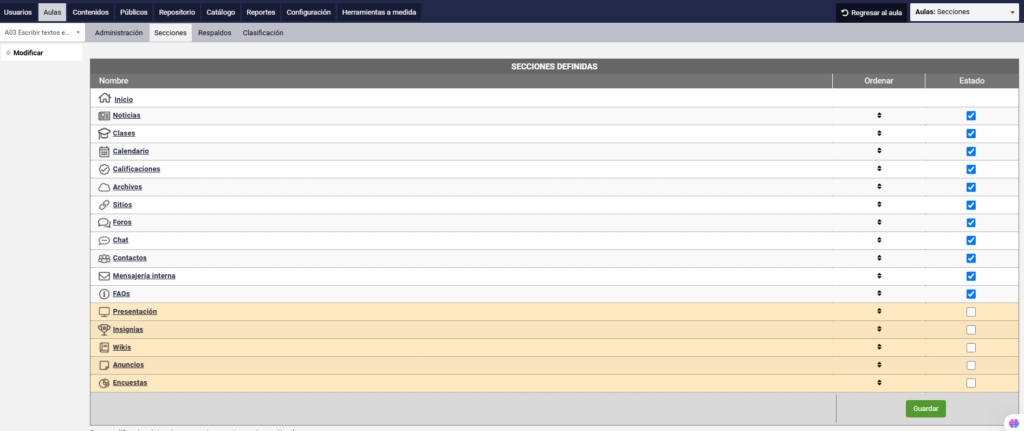
It’s key to decide which parts of the classroom will be active. This prevents participants from trying to access empty spaces, which could create confusion or frustration. Think about which tools or resources are really necessary for your proposal.
-
How do I deactivate sections?
It’s very easy: go to Administration > Classrooms > Sections and uncheck the ones you won’t use. Don’t worry, you can always reactivate them later if you need them. -
How do I order the sections?
In the same configuration section, you can drag and drop the sections to define the order in which they will appear or use the arrows that appear on the right. This allows you to prioritize what’s most important.
Rename the sections
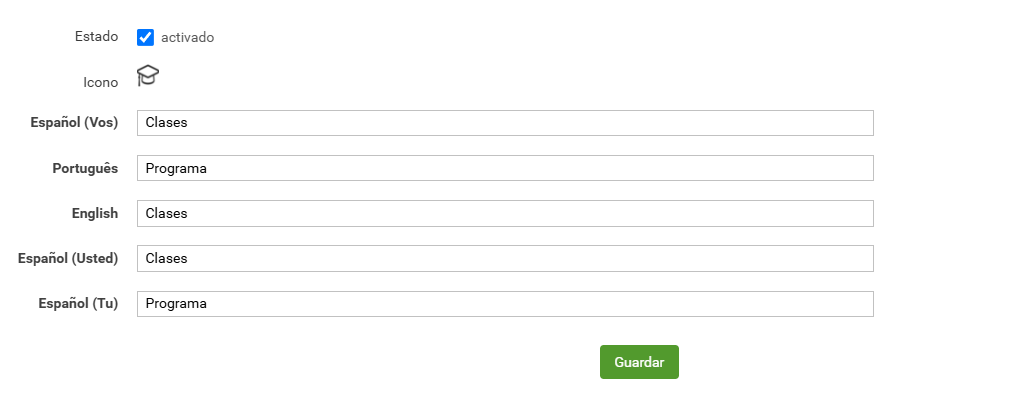
Changing the name of sections is technically straightforward, but the real challenge is choosing words that fit your proposal and are clear to participants. For example:
- If your classroom is used only for exams, instead of calling a section Program, you could rename it to Assessments.
- If it’s a space for debates, Forums could become Dialogues or Exchanges.
- If the classroom functions as a library, the Files section could be called Library, and Sites could be Video Library.
The idea is to be creative and use names that reflect the purpose of the classroom and are familiar to users.
If you have questions about how to use these tools, contact us! We’re here to help you improve the organization of your classrooms.