

Your users' data changes: someone moves, another changes their email, or suddenly you add a field you didn't have before. Fixing them one by one would be endless. That's why the campus lets you do it in bulk, from a single spreadsheet and with a preview before you confirm anything.
Before you start, a concept worth being clear about: a user's data belongs to the user, not the classroom. No matter how many classrooms they're enrolled in; their first name, last name, email and additional fields are unique within the campus. So when you update, you update the person's record once, and it applies everywhere.
The tool lives in Tools → Bulk-update user data and works from a file you upload: you fill it in only with what you want to change, upload it, review and confirm. The campus offers a template to build it, but using it is optional. Let's first look at what it's good for.
Three situations where it saves you
🗺️Did you add a new field and want to load it for thousands of users?
Think of a real case: you ran a survey to find out your learners' home town. Now you have that field that wasn't in their records before. With this tool you load just the town for thousands of users at once, without touching anything else in their profile. What was a scattered survey becomes orderly data inside the campus.
✉️Do you have a record of emails that changed?
If you've been keeping a list of email changes —because people change jobs, providers or simply accounts—, you update them all at once. Email is one of the main fields, so it goes straight into the template. Goodbye to editing record by record.
🔠Do you want to normalize first and last names?
Any database with years behind it ends up with names in UPPERCASE, others in lowercase and others halfway. With this tool you align them to a consistent format —Title Case, for example— and upload the correction in minutes. A tidy database isn't a cosmetic detail: it shows in every certificate issued and every communication that leaves the campus.
How it's done, step by step
It's four steps, and the last one is a safety net: nothing changes until you confirm it.
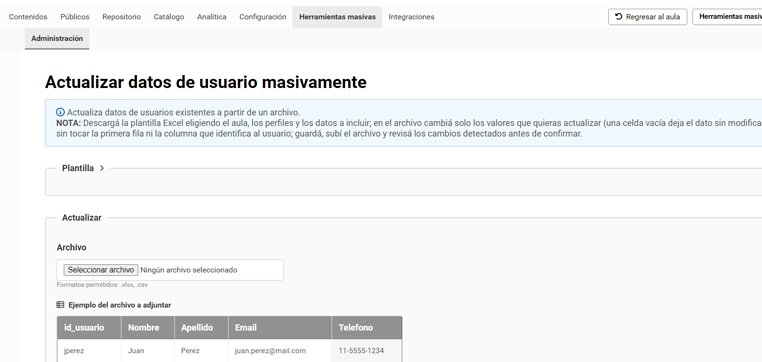
- 1Build your spreadsheet (the template is optional).You can download a template from the campus: you mark which main fields (first name, last name, email) and which additional fields to include, and it builds the file with the columns in the right order. Choosing a classroom is optional: since the update overwrites the user's record, it affects the whole campus, wherever they're enrolled. If you already have your own file, that works too.
- 2Edit only what changes.You open the file and type only the new values. Here's the golden rule: an empty cell leaves that field untouched. There's no need to re-enter what's already correct.
- 3Upload the file.In .xlsx or .csv format. You click Continue and the system processes the spreadsheet to show you a review.
- 4Review and confirm.Before applying anything, the campus shows you a summary: how many records will be modified, how many have no match, how many remain unchanged and how many have errors, with the current value → new value detail. Only when you click Apply changes are the users modified, and you get a final summary (modified, skipped, errors).
That step 4 is what makes the operation safe: you see exactly what's going to happen before it happens, and you can stop if something doesn't add up.
⚠️The column order is sacred
The platform doesn't read the contents of the cells: it goes by the position of each column. If a column ends up in the wrong place, the data will be saved in the wrong field. That's why the template is so valuable: it hands you the correct order already built. If you prefer to use your own file, follow that order to the letter.
⚙️Four recommendations to nail it
The empty cell is your ally.Load only the column you want to touch and leave the rest blank: that way you update a single field with no risk of overwriting the others.
Make the most of the preview.It's the moment to spot failed matches or errors before they hit the database, not after.
Narrow by classroom and profilewhen generating the template, to work exactly on the set of users you care about.
Keep the original file.Having the spreadsheet you uploaded gives you traceability of what you changed and when, in case you need to review it later.
Keeping the database up to date stops being a painstaking chore
A survey, a spreadsheet and a review: thousands of records updated in minutes, with the control of seeing exactly what's going to change before it does. Whether it's to add the home town, bring emails up to date or align first and last names, the bulk update turns a days-long task into a coffee-break one.
Any questions or need a hand with a particular case? Write to soporte@educativa.com and we'll help you out.
educativa Team / educativa Support Dept.